DG DGD Automation Git Manager Docs

Documentation

Git Manager Docs

Current version 0.2.3 Ignition 8.3+ Built for Ignition

Reference documentation for the current Git Manager release. Use the sidebar to move between setup notes, toolbar behavior, manager sections, and core workflows.

Current Git Manager toolbar in the Ignition Designer
Current toolbar actions: Manager, Init, Stage, Commit, Pull, Push, Reload Projects, Reload System.

Quickstart

What to know before you use it.

Target version

Ignition 8.3 or later.

Repository location

Paths are interpreted on the gateway machine. Most usage centers around the Ignition data directory.

Git backend

The module runs native git on the gateway, not JGit.

Auth model

SSH keys, known hosts, and credential helpers must work for the Ignition gateway service account.

Toolbar

Common actions directly in the Designer.

Ignition Designer toolbar showing Git Manager actions
Action
What it does
Manager
Opens the full Git Manager window.
Init
Creates a repository in the Ignition data folder or another gateway-local path.
Stage
Stages the current repo changes using the loaded repository path.
Commit
Commits from the current repo using the message and identity configured in the manager or settings.
Pull / Push
Runs remote sync actions against the configured remote and remote branch.
Reload Projects
Requests a project resource rescan after Git changes land on disk.
Reload System
Requests a system file rescan after Git changes land on disk.

Manager Window

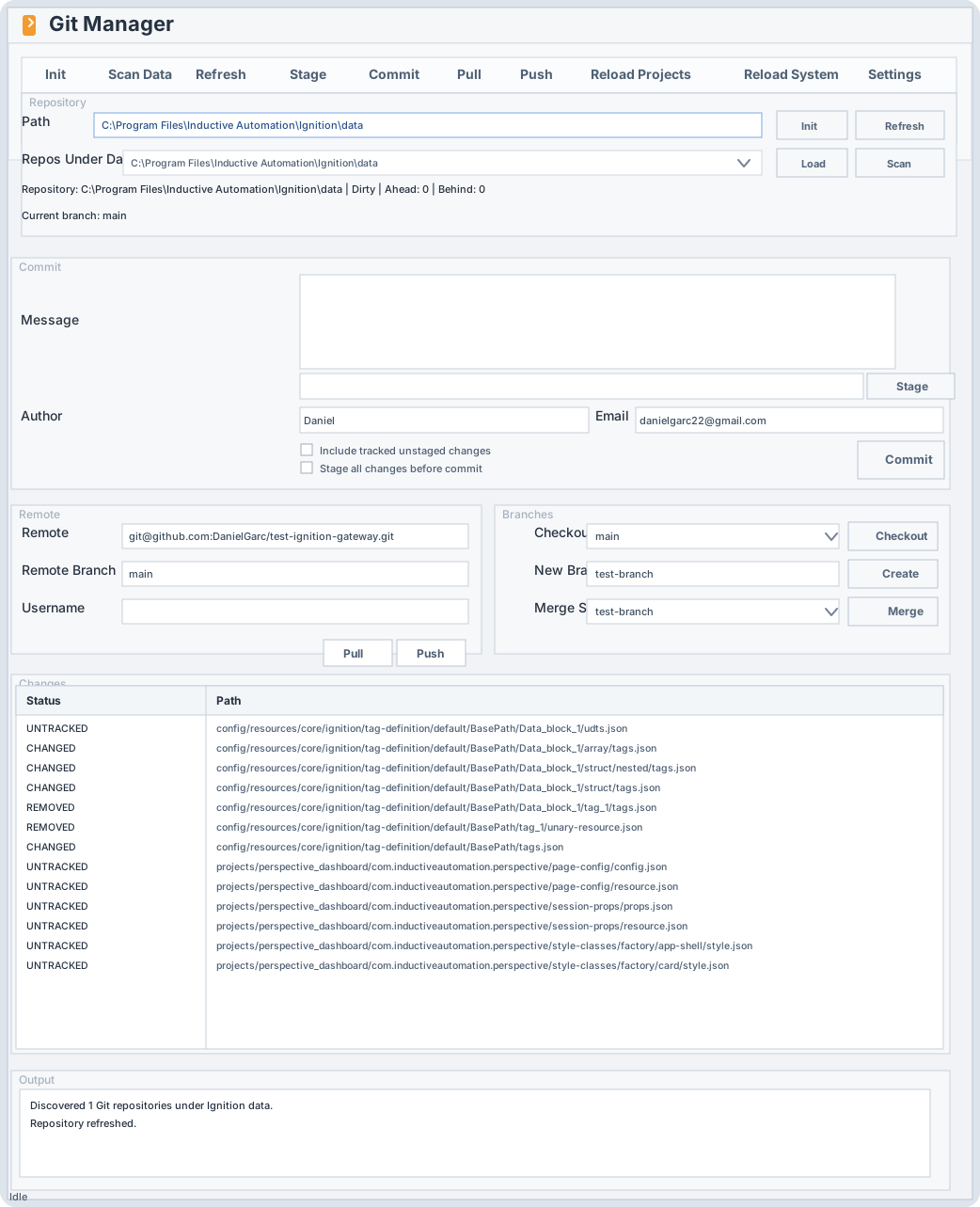
The full repository workflow in one place.

Git Manager dialog showing repository, commit, remote, branches, changes, and output sections

Repository section

Load a path, discover repos under data, initialize a new repo, and refresh status.

Commit section

Stage paths, commit with message and author metadata, and optionally stage everything before commit.

Remote section

Add a remote, update its URL, fetch, pull, and push.

Branches section

Checkout, create, and merge branches with an explicit start point.

Changes table

Review tracked and untracked changes before staging or committing.

Output panel

Read operation results and error messages directly from the manager.

Core Workflows

Step-by-step usage for the current release.

01

Initialize a repository

Create a repo directly in data, in a subfolder under data, or in another gateway-local folder.

  1. Open Manager or click Init from the toolbar.
  2. Leave the path blank if you want the repo created directly at the Ignition data root.
  3. Enter a relative folder if you want a subfolder under data, for example git/my-project.
  4. Use a custom path only when you want a different gateway-local location.
  5. Confirm the branch name, typically main.
  6. After init completes, click Refresh to load the repository state.
02

Stage and commit

Stage selected work or everything, then create a commit without leaving the Designer.

  1. Load the repository path and click Refresh.
  2. Review the Changes table so you know what will be staged.
  3. Use Add Patterns for explicit paths, or leave it blank to stage the current repo changes.
  4. Click Stage.
  5. Enter a commit message.
  6. Enable Stage all changes before commit if you want the commit action to restage everything first.
  7. Fill in author and email if you want commit identity metadata set explicitly.
  8. Click Commit and verify the result in the output panel.
03

Add a remote

Configure the remote in the manager instead of dropping to a terminal.

  1. Refresh the repository so the current remote state is loaded.
  2. In the Remote field, enter a name such as origin.
  3. In the remote URL field, enter the full SSH or HTTPS repository URL.
  4. Click Add Remote.
  5. If the remote already exists, use Update URL instead.
  6. Click Fetch to confirm connectivity and populate remote branch state.
04

Push changes

Send local commits to the configured remote branch.

  1. Make sure the remote already exists and the repository has at least one commit.
  2. Confirm the Remote and Remote Branch values in the Remote section.
  3. Use Fetch or Pull first if you want to update local state before pushing.
  4. After you have staged and committed local work, click Push.
  5. Read the output panel for success or authentication errors.
05

Create and switch branches

Use the Branches panel for local branch work inside the manager.

  1. Refresh the repository before branch work so local and remote refs are current.
  2. To change branches, select a branch from Checkout and click Checkout.
  3. To create a branch, enter the new name in New Branch.
  4. Set Start Point if the branch should start from something other than the current branch.
  5. Click Create.
  6. Use Merge later to merge another branch into the current one.
06

Reload project and system changes

Tell Ignition to rescan files after a pull, merge, or other repository update.

  1. Finish the Git operation that changed files on disk, such as pull or merge.
  2. Click Reload Projects if project resources changed.
  3. Click Reload System if gateway-level system files changed.
  4. Confirm the action in the output panel and in the Ignition environment you are working with.

Operational Notes

Current scope and deployment details.

Repository discovery

The manager can scan the Ignition data tree and list detected repositories for quick loading.

Git ignore behavior

When no .gitignore exists in an Ignition data-root repository, the module applies the recommended Ignition ignore template.

SSH behavior

SSH works only when the Ignition service account can use the relevant keys, host entries, and known hosts configuration.

Current scope

Core workflows are included. Clone, tags, stash, diff view, subtrees, submodules, and conflict-resolution tooling are not included yet.